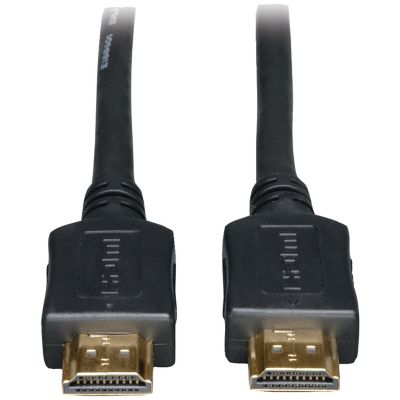
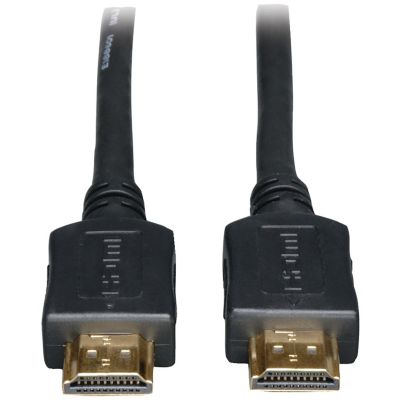
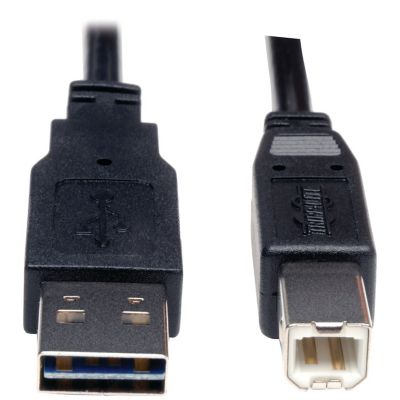
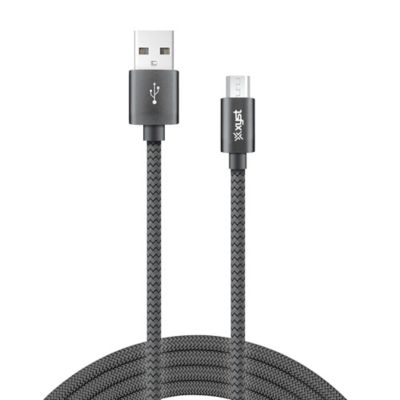
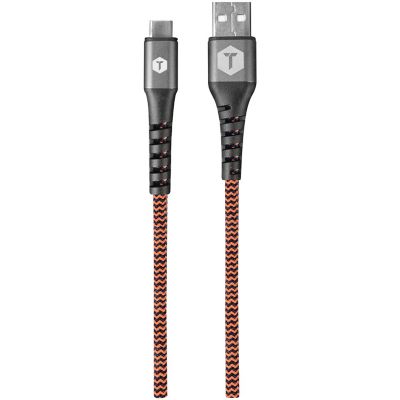
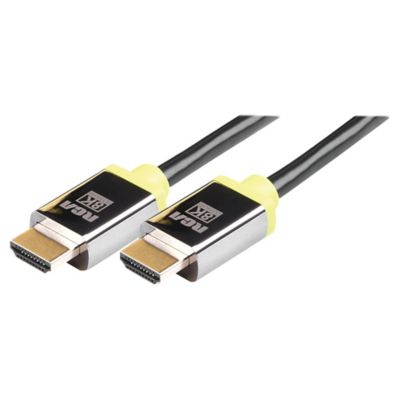
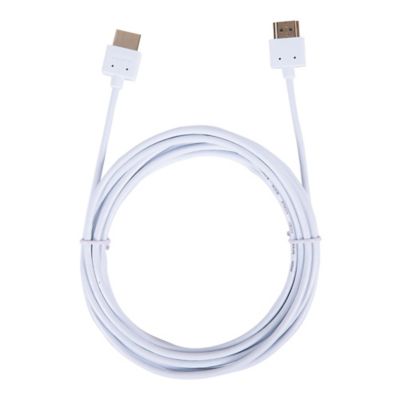
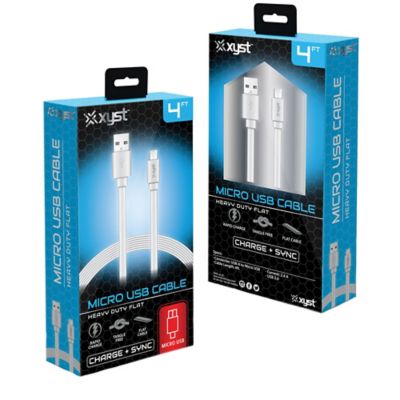
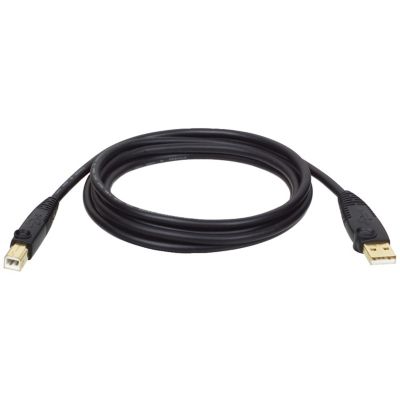
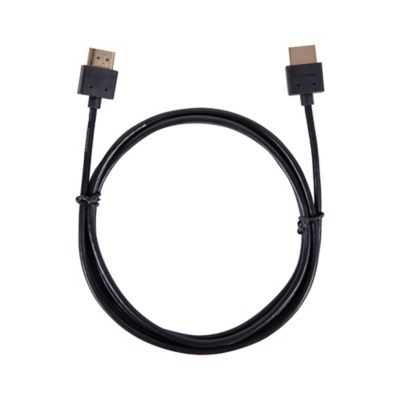
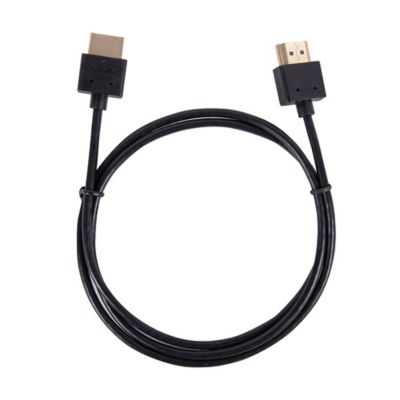
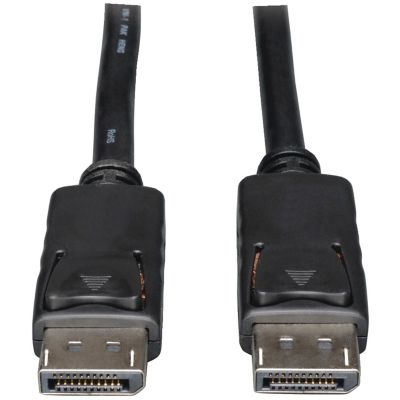
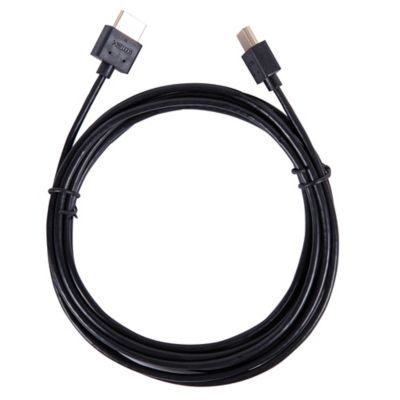
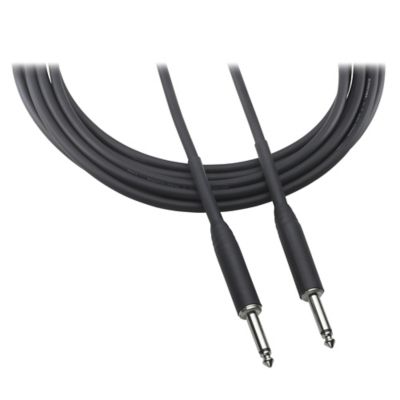
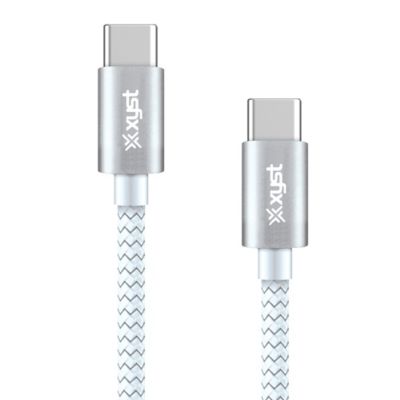
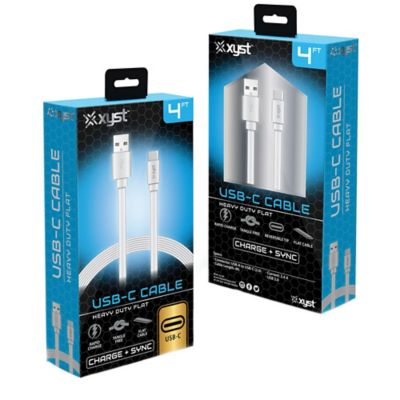
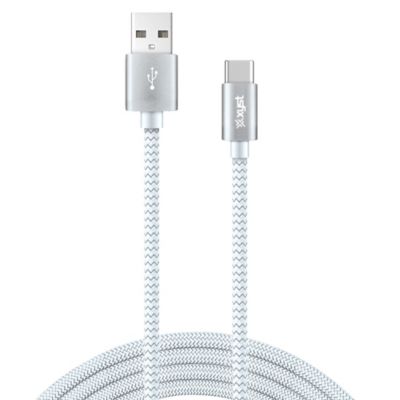
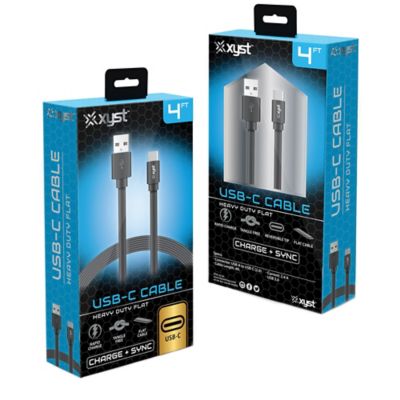
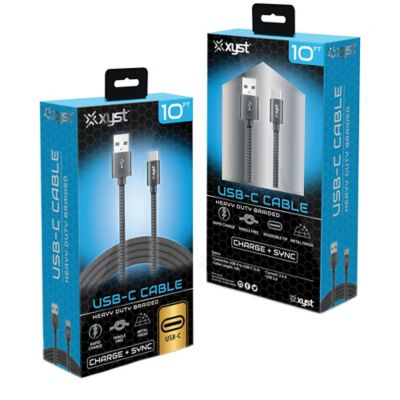
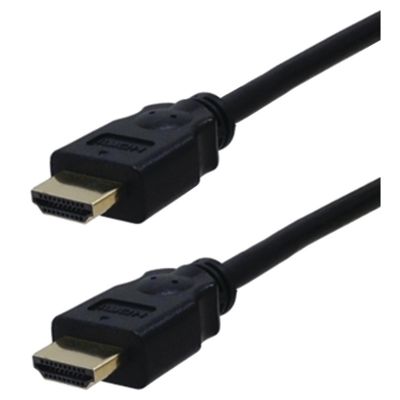
Connection cables provide the physical link that lets electronic devices share power, data, sound, or video. Each cable has a connector on one or both ends, and the right match depends on the ports found on the equipment you are connecting. A USB cable may link a computer with a phone, printer, camera, keyboard, mouse, or external storage drive. USB-A, USB-B, and USB-C describe common connector shapes and standards, so checking both ends before ordering can save a trip back to the store. Some USB cables are made mainly for charging, while others transfer files or connect accessories to a computer. If you need both charging and data transfer, look for that capability in the cable details. HDMI cables carry high-definition video and audio between devices such as a laptop, monitor, television, streaming setup, or game system. Ethernet cables connect a computer, smart television, security system, or other network-ready device directly to a router or modem, creating a wired internet link. For equipment that needs power from a wall outlet, battery, vehicle, or other source, compare the cable and connector with the voltage, amperage, and port requirements listed by the equipment maker. Power-related accessories and connection parts are also available in our
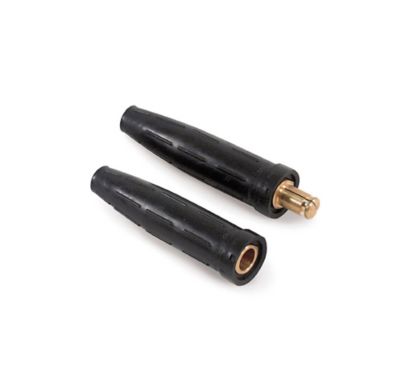
Power Connectors selection. Before placing an order, take a close look at the ports, count the connections needed, and note the distance between devices. A cable that is too short can pull on ports or leave equipment awkwardly placed, while extra length can be useful when a monitor sits across a desk, a router is tucked near a wall, or a device needs to reach around shelving. Measure the route instead of guessing, especially when a cable will run behind a workbench, along a cabinet, or through a home office.
Connection cables come in handy wherever people work, communicate, watch, listen, or keep equipment running. At home, a USB cable can charge a phone beside the bed, move photos from a camera, or connect a printer to a desktop computer. An HDMI cable can make it easier to view a laptop screen on a larger display for movies, family photos, presentations, or game play. Ethernet cables are useful in home offices, barns, workshops, and outbuildings where a wired network connection may be preferred for a stationary computer, camera system, or smart device. In a rural home, equipment may be spread across several rooms or buildings, making cable length and routing especially important. A connection that works well on a desk may not reach from a router to a wall-mounted television or from a computer to a printer across a workroom. Look at connector orientation, cable thickness, bend room, and the path the cable will follow. Right-angle connectors can help in tight spaces, while a flexible cable may be easier to guide around a desk leg or behind a cabinet. If the cable will pass near livestock areas, feed rooms, garages, or shop floors, keep it away from hooves, wheels, water, heat sources, sharp edges, and places where it could become a tripping hazard. Use clips, sleeves, or cable ties suited to the setting, and leave enough slack at each end to unplug equipment without yanking the cord. A little planning goes a long way when the morning is cold, the lights are low, and you need to get a printer, monitor, charger, or network device working before chores begin. Connection cables can also make practical gifts for students heading to school, family members setting up a home office, someone building a media area, or a friend who has recently added a computer, monitor, camera, or streaming device. They are small, easy to store, and useful when a replacement is needed at an inconvenient time.
When comparing connection cables, start with the job the cable must perform rather than choosing by appearance alone. Identify the source device and the receiving device, then write down the port type on each one. For example, a computer may have USB-C on one side while a printer uses USB-B, or a monitor may accept HDMI while a laptop offers a different video port. Adapters can help in some setups, but they add another connection point and may not support every feature, such as high-resolution video, faster data transfer, charging speed, or audio. Check the product information for supported standards, connector types, transfer rates, video resolution, charging limits, and compatibility notes. For Ethernet, consider the network equipment and the speed your setup supports; a wired link cannot make an internet plan faster than the service or hardware allows. For HDMI, confirm that the cable and connected devices support the display resolution and refresh rate you plan to use. For USB, make sure the cable supports the purpose at hand, whether that is charging, syncing files, connecting a peripheral, or moving data between storage devices. Cable length matters, but so does the way it will be stored. Avoid tight knots and sharp bends, coil longer cables loosely, and label both ends when several similar cords run behind a desk or entertainment center. Keeping a few connection cables organized in a drawer, toolbox, or office bin can save time during a move, a repair, a school project, or the setup of seasonal equipment. During the cooler months, indoor work areas often become busy with paperwork, equipment maintenance, family gatherings, and projects at the kitchen table or shop bench. The right cable helps keep those spaces connected without adding clutter, making it easier to power devices, share information, view a larger screen, or maintain a steady link between equipment.